About 3D printing
Have a 3D model? How to request a printing quote
Check the file, dimensions and settings, compare options in the calculator and submit the model for a confirmed quote.
Author: Only3D Print editorial team
Published:
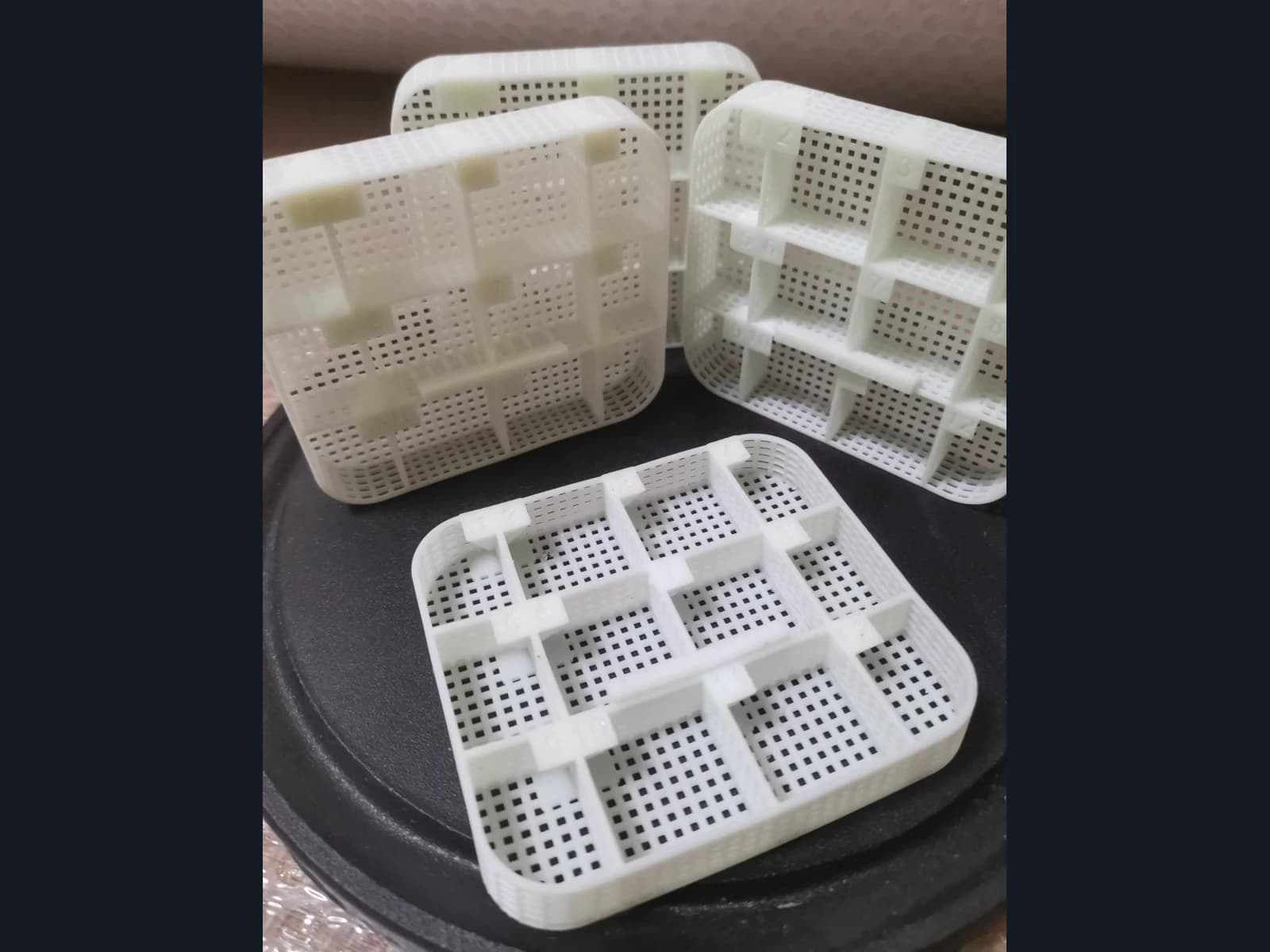
If you already have a 3D model, start with the Only3D calculator. For an STL file, it shows an estimate based on the model’s geometry and your selected options. You can then request a confirmed quote. STEP, OBJ, 3MF and ZIP files are also accepted, but are quoted manually.
Choose the current file
Upload the version you want to make. If you have several revisions, give the file a clear name so the current one is easy to identify. There is no need to include the full project history when one version is enough for the discussion.
The file size limit is 100 MB. An instant estimate requires an STL. After it has been processed, check the displayed dimensions and model preview: is it the right part, at the intended size, and the correct revision? If the dimensions do not match what you need, do not rely on that estimate. Check the file and export units first.
For other supported formats, the website asks for contact details so the team can prepare a manual quote. It is normal not to see an instant price in that case; you can submit the request without one. If the STL cannot be read, check its export in your design software or describe the problem in your enquiry.
Explain what the part is for
A file describes the shape, but does not explain the whole project. In the comments, tell us where the object will be used, which areas need to fit other parts and what matters about its appearance. List any critical dimensions or clearances separately so they can be discussed.
For an enclosure, mention mountings and connector locations. For a stand, describe what it needs to hold. For a miniature, specify the intended size and whether you plan to paint it yourself. If you have not chosen a material, say so: the intended use gives us a starting point for discussing options.
What changes the estimate
The calculator lets you select technology, material, print quality, quantity, finishing and turnaround. FDM also has an infill setting. Compare options using the same starting conditions; changing several settings together makes it harder to see why the total has changed.
- Technology and material establish the basis of the print estimate.
- Model size and geometry inform estimated material usage and machine time.
- Print quality and, for FDM, infill change the calculation parameters.
- Quantity affects the batch calculation and price per part.
- Finishing and priority options are included in addition to basic printing.
The calculation also has a minimum per line item that covers starting the print job. This means a small object’s price cannot always be found by simply multiplying its weight by a material rate. See the current price list for rates and terms. This guide does not repeat figures that may change.
Choose the finish you need
F0 means as printed, F1 is a smooth finish with sanding and primer, F2 is painted in a colour, and F3 is an artistic finish. Explain your preferences in the comments, especially if you have a colour reference or requirements for visible surfaces.
The estimate helps you compare options. The team confirms the final price and whether your required date is achievable after reviewing the request. If a date matters, write it down even when you have selected a priority option in the calculator.
Request a confirmed quote
Check the quantity and settings, add your name and a Telegram contact, phone number or email, then send the request. A successful submission displays a confirmation and request number. If you do not yet have a model, or need a new one developed, use our guide to starting with a description, photo or sketch.